Turn job photos into clear, editable reports.
Arrange your photographs, add captions or saved phrases, and export a clean Word document or PDF with your own branding.
For Windows 10 and 11. Your projects stay on your computer and work offline.
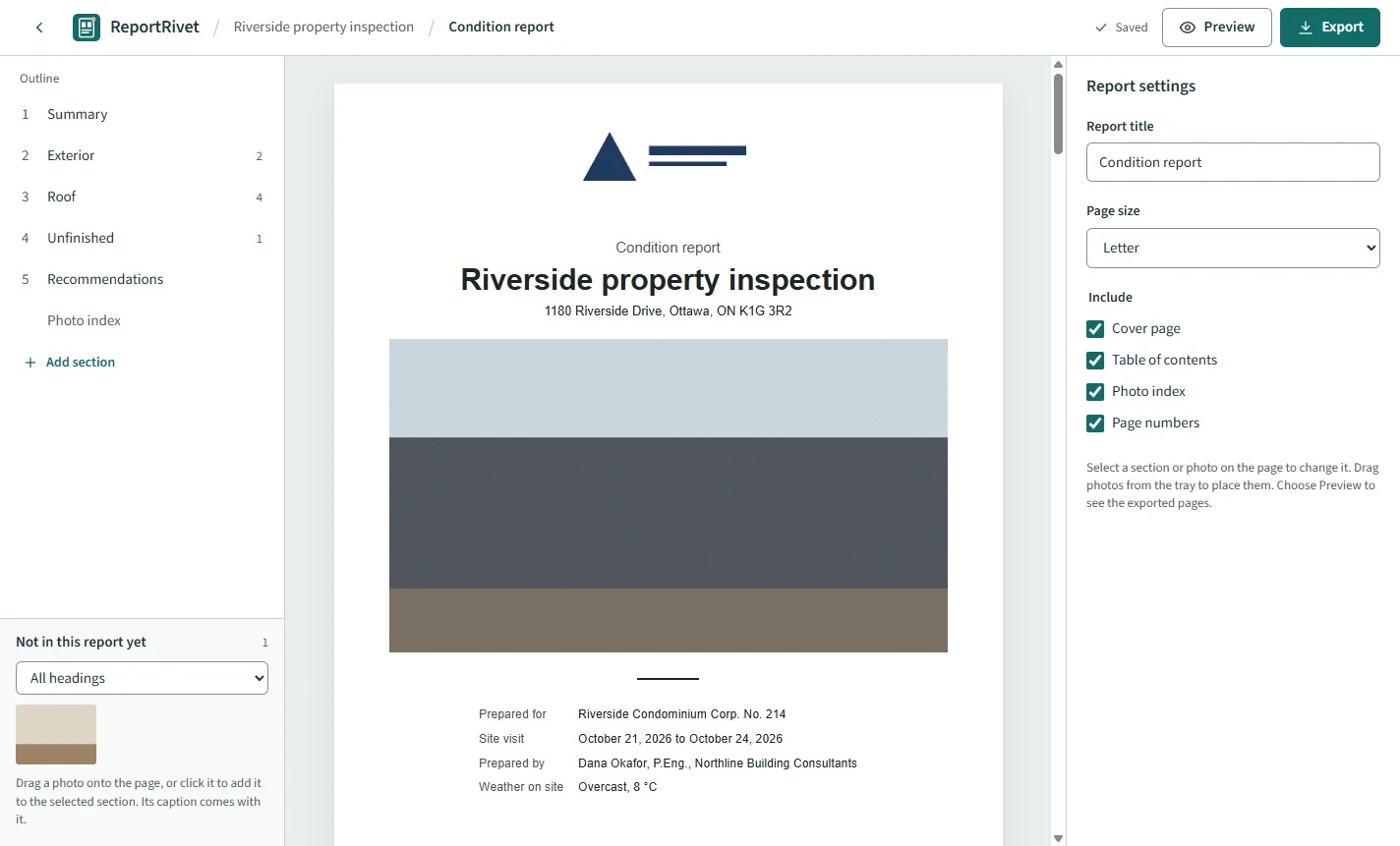
For people who write reports from site photos
You come back from a visit, or finish a job, with a folder of photos and a report to write. ReportRivet turns that folder into a document your client can read.
Independent inspectors
- Document site conditions area by area
- Note each defect with its location and date
- Send a condition report after every visit
Contractors
- Show before-and-after work
- Record repairs and what is left to do
- Hand over a completion report with the invoice
Technical consultants
- Summarize a site review with photos
- Reuse the wording you write every time
- Keep client and project details consistent
Small firms
- Give every report the same structure
- Put your logo and address on every page
- Keep each project's photos and reports together
How it works
Three steps from a folder of photos to a finished report.
-
Import photos
Choose the folder from your site visit, or pick individual files. JPEG, PNG and HEIC photos are grouped by the date they were taken. Your original files are not changed.
-
Arrange and describe
Sort photos under headings like Exterior or Roof, then caption each one. Type / to insert a saved phrase or a project detail such as the client's name.
-
Export your report
Choose Word to keep editing, or PDF to send. Pick Letter or A4, and include a cover page, contents, photo index and page numbers if you want them.
What you can do with it
The parts of report writing that usually take the longest, handled in one place.
See a finished report
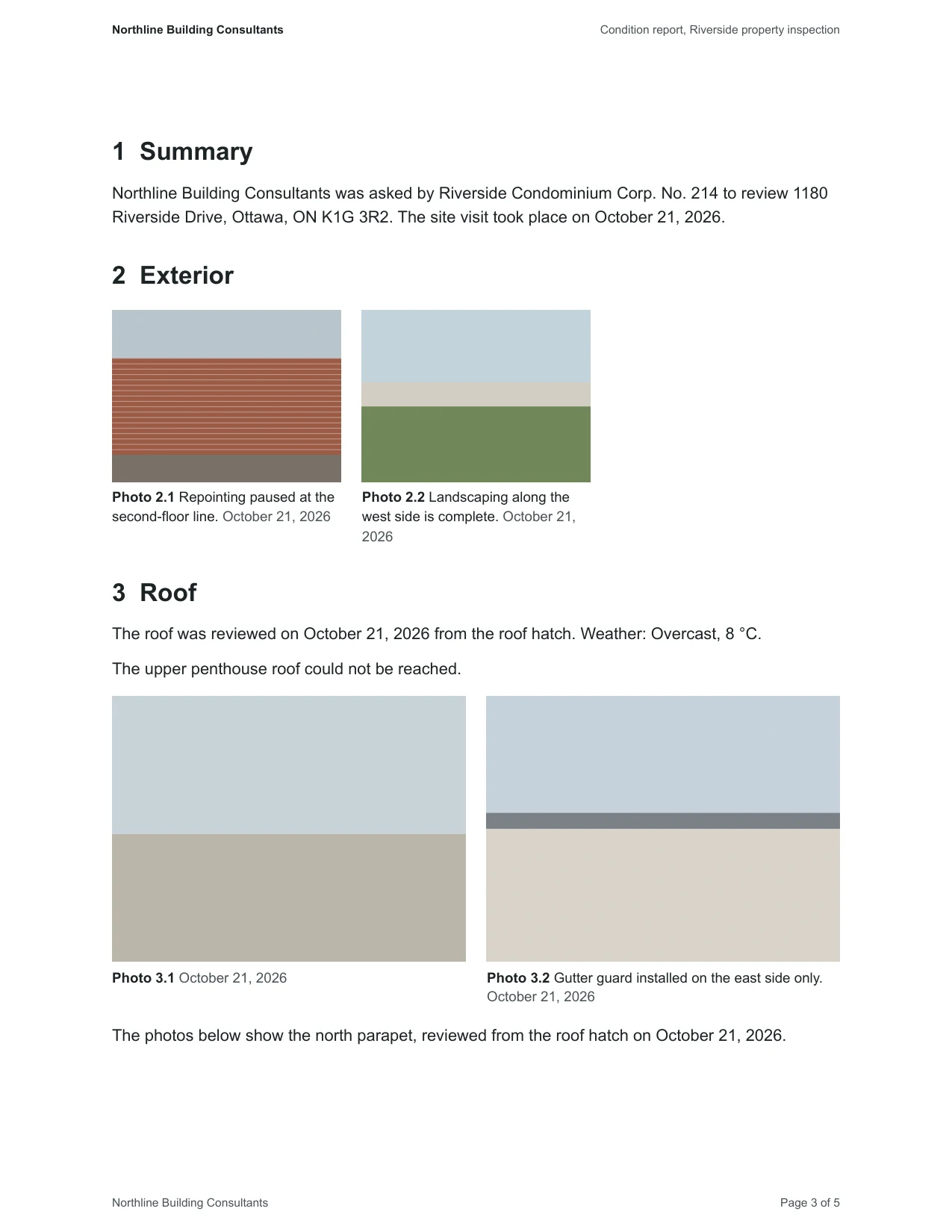
Riverside property inspection, a five-page condition report exported by ReportRivet. Open any page to read it, or download both versions and check them yourself.
This is a sample. The company, client and address are fictional, and the photos are simple placeholder images.
Pricing
What you pay, what you get, and where it runs.
One purchase. No subscription.
ReportRivet for Windows, with every feature on this page.
$20USD
Showing prices in US dollars.
One-time payment, plus any sales tax shown at checkout.
Buy ReportRivetCheckout is handled by Lemon Squeezy, our online reseller. After you pay, you get a receipt and a download link by email, and your download stays available under My purchases & downloads.
- Price
- $20 USD per license
- Currency
- Canadian dollars in Canada, US dollars everywhere else. The exact price, currency and any taxes are shown at checkout.
- Payment
- A single payment for a perpetual license to the major version you buy. No subscription, renewal or recurring fee.
- Platform
- Windows 10 or Windows 11, 64-bit. Not available for Mac or mobile.
- Users and devices
- One named person, on up to two computers they use, such as a desktop and a laptop. Each additional person needs their own license. Client work is allowed, with no per-report fee.
- Updates
- Every update released within the major version you buy is included. A ReportRivet 1 license covers 1.1, 1.2 and so on. A future major version may be sold as an optional paid upgrade, and your license does not expire when one is released. New versions are listed on What's new.
- Refunds
- Ask for a refund within 14 days if ReportRivet doesn't meet your needs. This does not limit your rights under the law.
- Full terms
- Read the purchase and license terms before you buy.
Common questions
Can't find your answer? See Help or contact us.
What do I need to run ReportRivet?
A PC running Windows 10 or Windows 11, 64-bit. The app is about 115 MB. ReportRivet copies the photos you import into your project, so leave enough disk space for them.
There is no Mac version.
Do I need an internet connection?
Only to download ReportRivet and to activate it once on each computer. After that, creating, editing and exporting reports all work offline, and ReportRivet doesn't check your license again. Your projects are stored on your computer in Documents\ReportRivet.
You need a connection only if you choose to import photos from, or sync a project to, Google Drive or OneDrive. These cloud features are optional, nothing is uploaded until you choose Sync now, and you connect your account by signing in from Settings. Help explains how.
Which formats can I export?
- Word document (.docx): text, captions and photos stay editable.
- PDF: a fixed layout that looks the same everywhere.
Both come in Letter or A4, at standard quality (smaller files for email) or print quality, with an optional cover page, table of contents, photo index and page numbers.
Do I need Microsoft Word?
No. ReportRivet creates the Word document and the PDF itself, so you can build and export reports without Word installed. The PDF opens in any PDF reader.
To edit an exported Word document, you need an app that opens .docx files, such as Microsoft Word. If the report has a table of contents, choose Yes when Word asks to update fields, and it fills in the page numbers.
How do I install and activate it?
There is no installer. Download ReportRivet.exe from your purchase email or from My purchases & downloads, save it wherever you like, such as your Desktop, and double-click it.
The first time it opens, enter the license key from your purchase email. Activation needs an internet connection once. After that, ReportRivet works offline with no further license checks. Your key activates up to two computers.
How do updates work?
ReportRivet does not update itself. New versions are listed on What's new and appear under My purchases & downloads. Download the new ReportRivet.exe and replace the old one.
Your projects, photos and saved phrases are kept, because they are stored separately in Documents\ReportRivet.
Every update released within the major version you bought is included at no charge. A future major version, such as ReportRivet 2, may be sold separately as an optional upgrade. You can keep using your current version without it.
What happens to my original photos?
Nothing. ReportRivet works with copies and never changes your original files. Removing a photo from a report or project does not delete the original.
How do I get support?
Start with the Help articles. If you still need a hand, email us and describe what you were doing and what happened. Email support covers installation and everyday use while your major version is supported.
For questions about a payment, receipt or download, use My purchases & downloads.
Can I get a refund?
Yes. If ReportRivet doesn't meet your needs, ask for a refund within 14 days of buying it. Email us or use the support link in your receipt, and include your order number and the email address you bought with. You don't need to show that anything is wrong with the software.
Once the refund is complete, the license ends and you should remove ReportRivet. Your projects and the reports you made stay yours. See the purchase and license terms for details.
Job photos. Finished reports.
Arrange your photos, reuse your own wording, and export a report your client can read.